
Getting started with Auto-Assign
Auto-Assign automatically distributes new or unassigned tickets using Round-robin or Least-busy rules. It helps teams keep inboxes up-to-date, balance workloads, and speed up response times, without needing to manually assign every conversation.
You can use Auto-Assign in two ways:
- Auto-Assign from Flows: automatically assign tickets the moment they’re created.
- Auto-Assign from the inbox: bulk-assign unassigned tickets easily.
Understanding Auto-Assign options:
Auto-assign uses your workspace’s user availability and assignment settings to allocate tickets fairly and efficiently. You can choose between two allocation methods:
Round-Robin
Assigns tickets evenly across eligible users in a repeating sequence.
- Distributes tickets one by one, cycling through the users' list
- You can limit the assignment to a specific team (for example: finance or customer service)
- You can limit the assignment to a specific role (for example: workspace owner or agent)
- You can choose to only assign to users who are online
Least-Busy
Assigns tickets to the eligible users with the fewest tickets.
- Finds the user with the lowest workload at that moment(based on ticket count)
- If two users are tied, round-robin is used between the two
- Allocation can be limited to a specific team (for example: finance or customer service)
- Allocation can be limited to a specific role (for example: workspace owner or agent)
- You can choose to only assign to users who are online
Auto-Assign behaviour during offline hours
Auto-assign respects your team’s availability:
- Evenings, weekends, public holidays:
If no users are online, tickets are not auto-assigned. - Tickets created during offline periods remain unassigned, so your team can pick them up later using manual assignment or the inbox auto-assign option.
Auto-Assign from Flows
Use Auto-Assign in ticket-creation flows when you want every new ticket to be assigned automatically.
When adding a create ticket step inside a flow, you can choose:
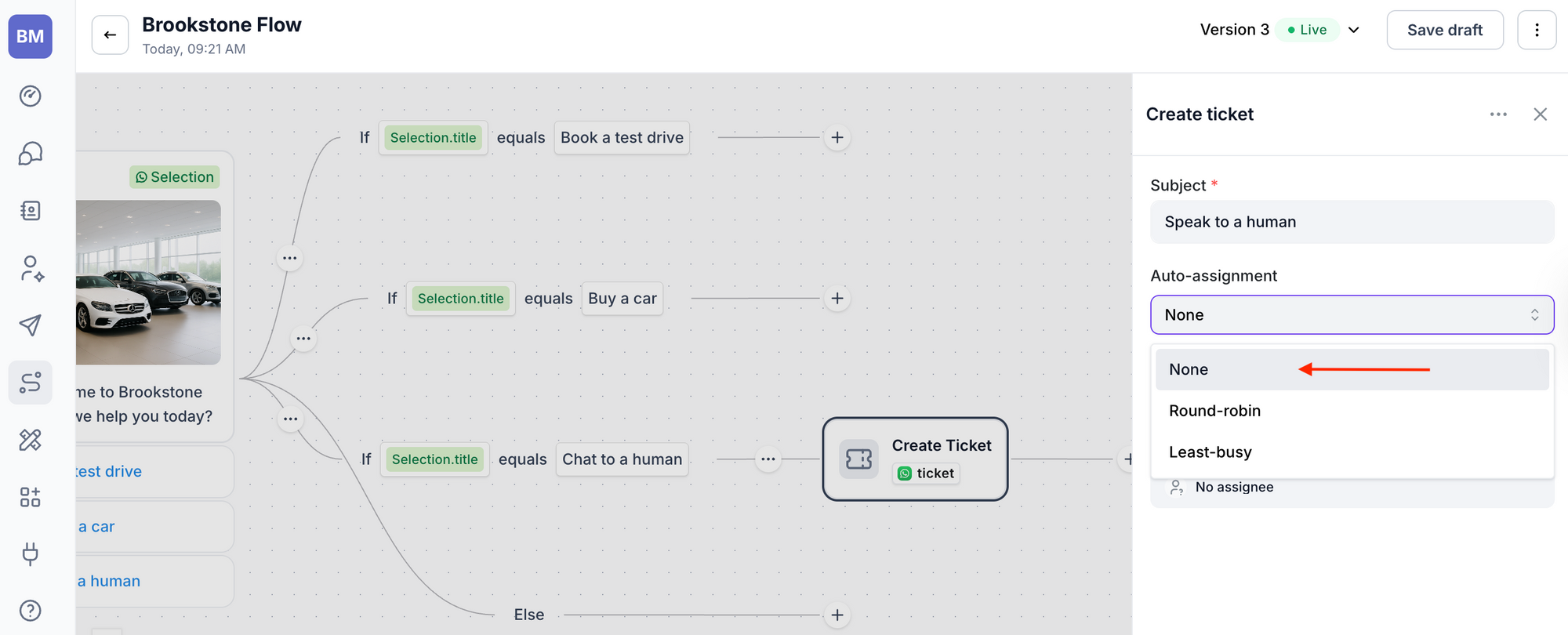
None
Creates tickets without auto-assignment. Tickets appear in the inbox as unassigned.
Round-robin allocation
Automatically assigns newly created tickets using sequential distribution.
Least-busy allocation
Automatically assigns tickets to the available users with the least number of tickets.
In both assignment options, you can:
- Select a specific team to assign to
- Select which user roles are eligible for assignment (for example: agent or outbound agent etc)
Auto-assign from the Inbox
Ideal for clearing ticket backlogs after weekends, evenings, or public holidays. In your inbox, you’ll see the auto-assign icon, next to the filter icon.
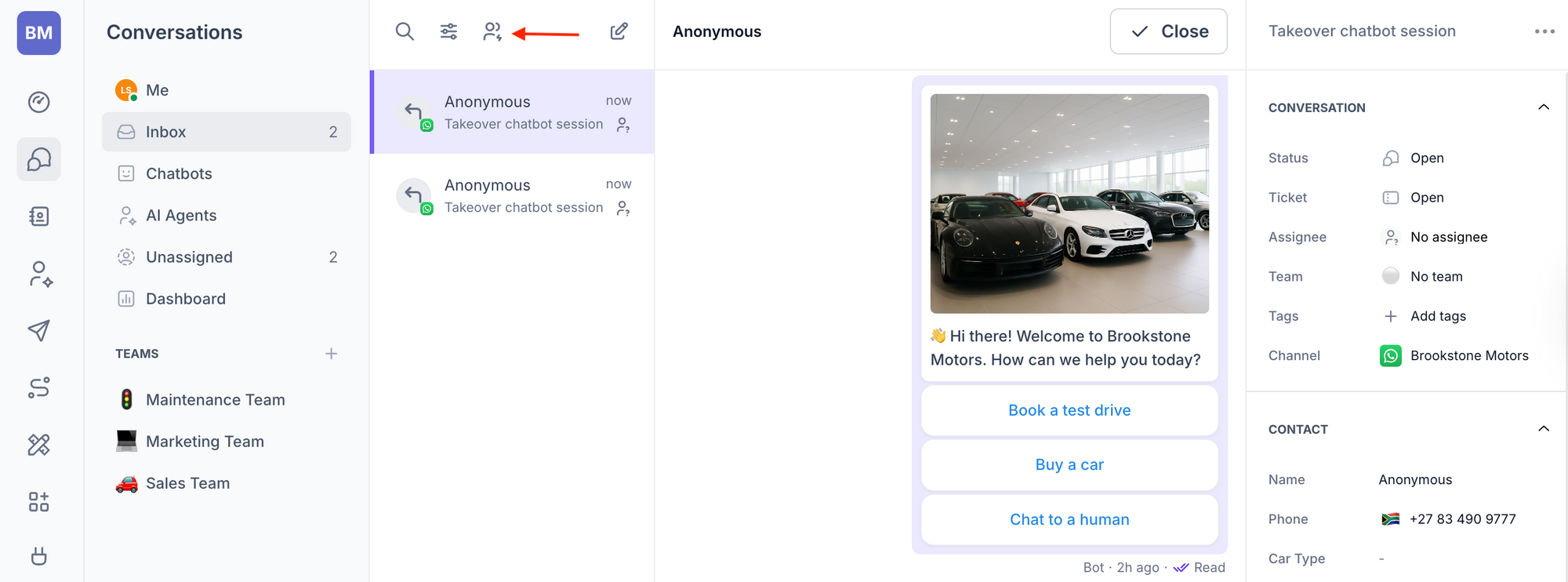
You are then able to choose between which assignment method you would like to choose:
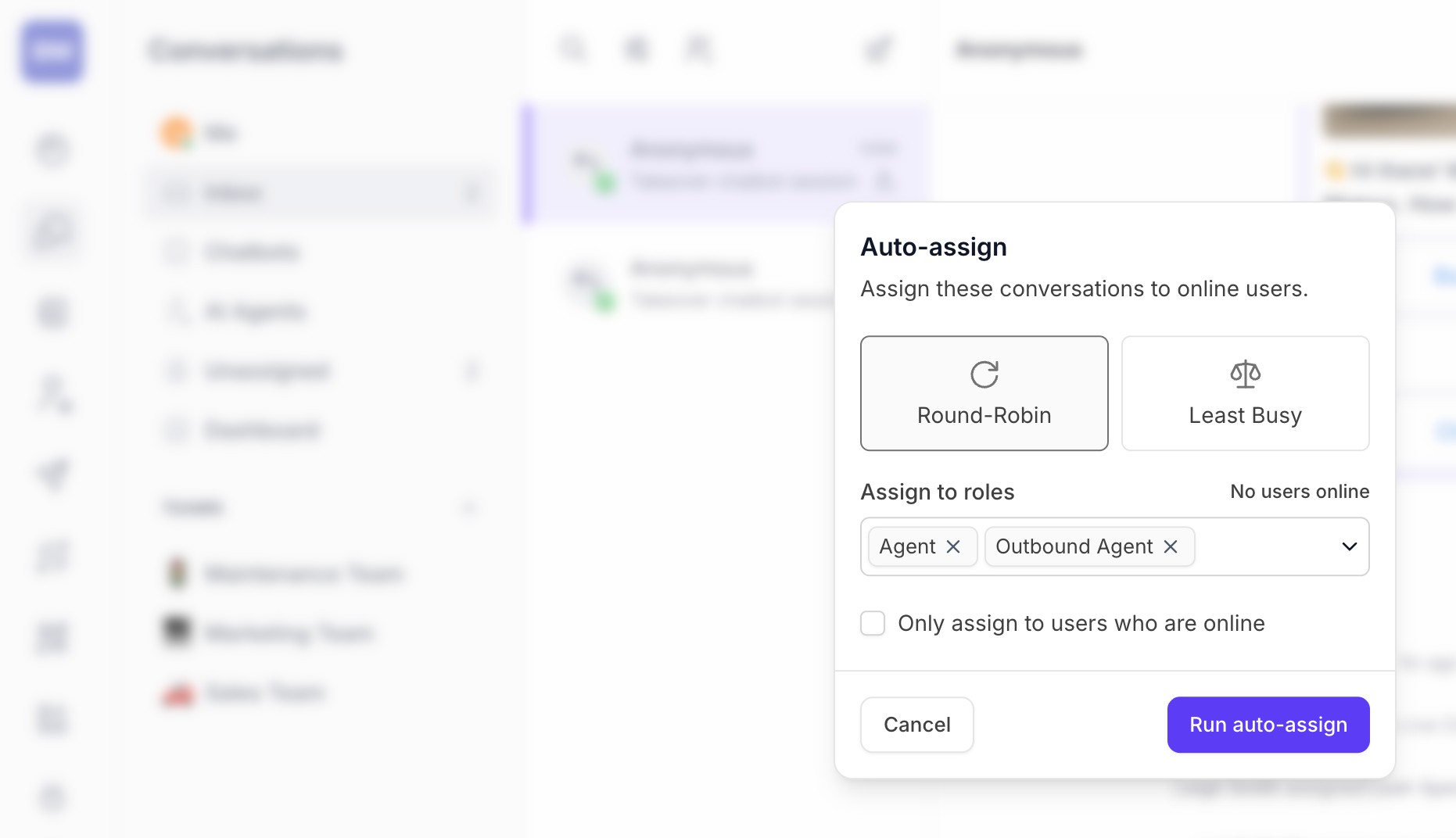
This lets you bulk-assign all unassigned tickets using the method you prefer.
This is specifically useful when:
- Your team comes online after an offline period
- A burst of tickets was created while no users were available
- You want to quickly distribute tickets without manually assigning tickets one by one
Once Auto-Assign is selected, you’ll:
- See the number of users currently online
- Select your chosen allocation rule (Round-robin or Least-busy)
Tickets will be distributed instantly, and you’ll see a confirmation message once it’s complete.
Billing and upgrades
Auto-Assign is available on Pro+ plans and above.
If your workspace is on a lower plan, you’ll see an upgrade message when wanting to use this feature, and you can upgrade to gain access.