
How to create and send a Carousel Template
Carousel templates let you send swipeable, multi-card messages to your customers via WhatsApp. They're ideal for showcasing multiple products, promotional offers, or step-by-step guides - all within a single message.
This guide will walk you through how to create and send a carousel template on Cue and submit it to Meta for approval.
What is a carousel template?
A carousel template is a WhatsApp-approved message format that consists of:
- A message body- the main text that appears above the carousel cards
- 2 to 10 swipeable cards - each with a media header, optional body text, and buttons
- Customers can swipe through the cards on their device to browse the content.
Prerequisites
- Your user must have the Workspace Owner/Broadcast Manager role.
- You must have a WhatsApp channel connected to your workspace.
Creating a carousel template
1. Sign into app.cuedesk.com
2. Click Tools in the left-hand side menu
3. Click Go to templates
4. Click Create Template
5. Select Marketing as the template category and select Carousel as the template type
Template details
- Name: Provide a name for your template.
- Category: Carousel templates are limited to the Marketing category only.
- Language: Select the language for your template (e.g., English).
Message body
Add the main body text that appears above your carousel cards.
- Maximum 1,024 characters
- Supports personalised variables — insert by pressing
{or clicking the "Insert variable" button - This body text is shared across all cards and appears once at the top of the message
Adding carousel cards
Click Add Card to start building your carousel. You must add between 2 and 10 cards.
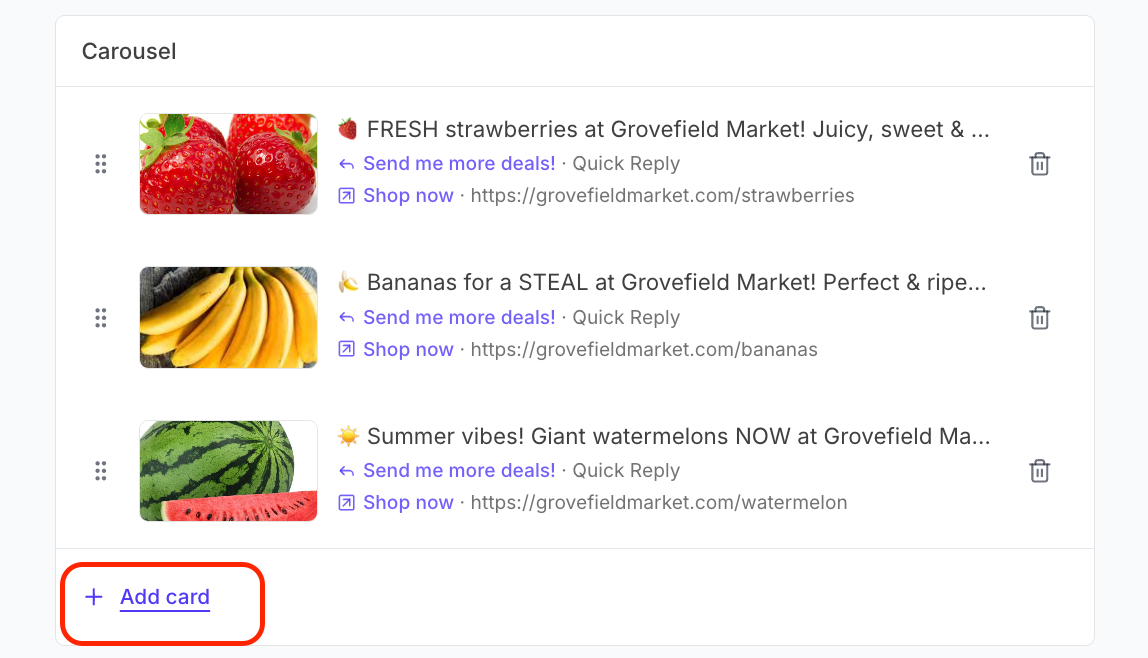
Card header (required)
Each card must have a media header - either an image or a video.
Image specifications:
- Format: JPEG or PNG
- Recommended dimensions: 1125 × 600 pixels
- Maximum file size: 5 MB
Video specifications:
- Format: MP4
- Recommended resolution: 1280 × 720
- Maximum file size: 16 MB
Card body (optional)
Each card can include its own body text with variable support.
- Maximum 160 characters per card
- If any card in the carousel includes body text, then all cards must include body text to ensure consistent card heights
Card buttons
Each card can have up to 2 buttons. The available button types are:
- Quick Reply - a pre-defined response option
- Visit Website (URL) - a link button (supports 1 variable in the URL)
- Call Us (Phone Number) - a phone number button
Maximum 25 characters per button label.
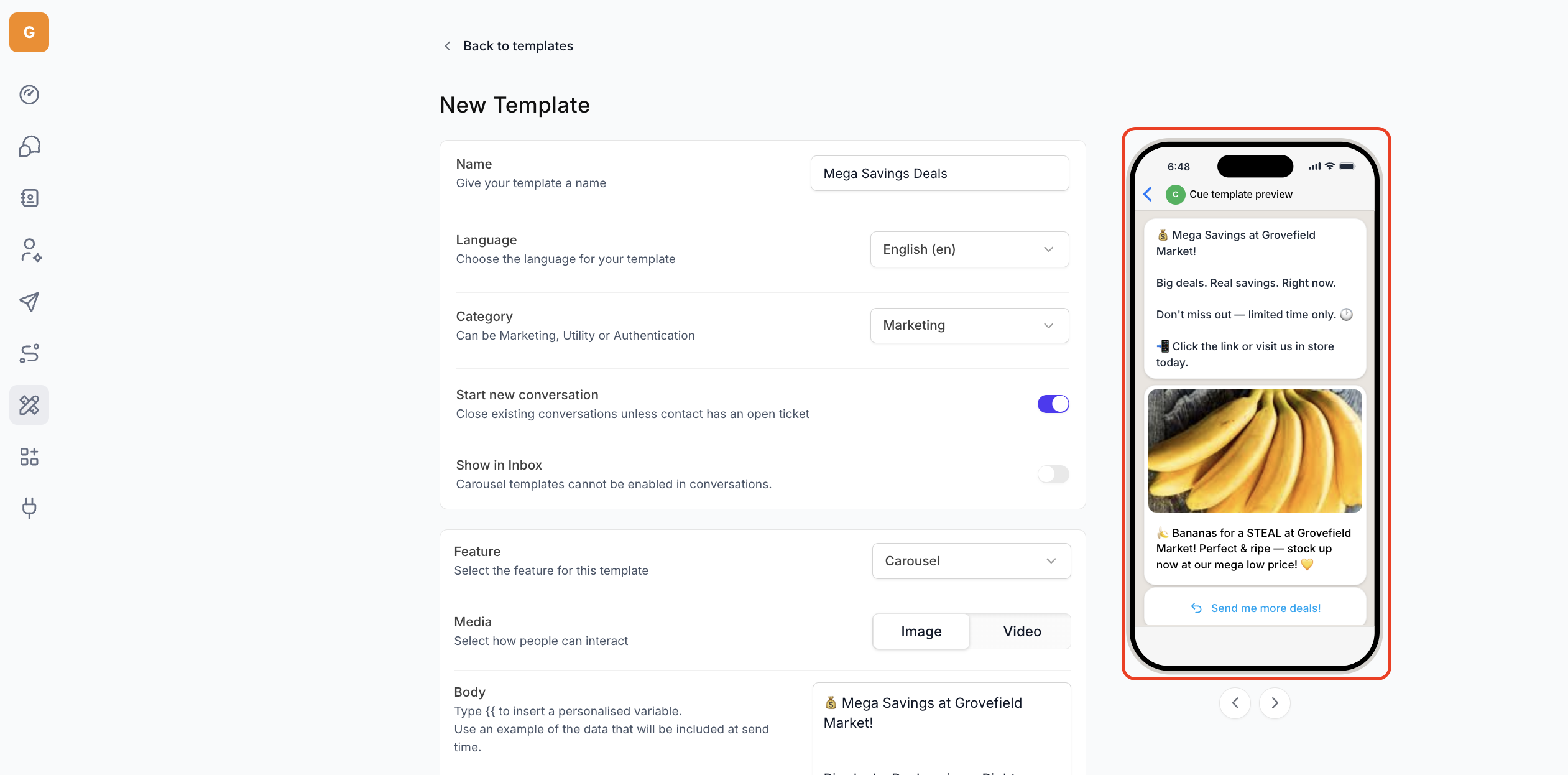
Live preview
The right-hand panel shows a real-time preview of your carousel template as it will appear in WhatsApp, including:
- The main message body
- Swipeable card previews with media, body text, and buttons
- Navigation controls to cycle through cards
Submit for approval
Once you're happy with your carousel template, click Create to submit it to Meta for approval.
- The status will initially show as Preparing
- Meta typically approves templates in under 60 seconds, but it can take up to 24 hours
- Once approved, the status will change to Approved and you can use it in a broadcast
Card consistency rules
To ensure your carousel template is approved by Meta, keep these consistency rules in mind:
| Rule | Details |
|---|---|
| Media type | All cards must use the same type - either all images or all videos |
| Button types | The type and order of buttons must be identical across all cards |
| Body text | If one card has body text, all cards must have body text |
| Button count | All cards must have the same number of buttons |
Sending a carousel template
Prerequisites
- Your carousel template must have an Approved status
- Your user must have the Workspace Owner or Broadcast Manager role
Sending a carousel broadcast
- Sign into app.cuedesk.com
- Click Broadcasts in the left-hand side menu
- Click Create a broadcast
Broadcast details
- Name: Enter a name to identify your broadcast
- Template: Select your approved carousel template from the dropdown. The template category (e.g., "Marketing") will be displayed alongside the template name.
Recipients
Choose how to provide your recipient list:
- Upload: Click to upload or drag and drop a file containing your contacts. Accepted file formats are CSV, XLS, or XLSX. You can also click "Download .csv example" to see the expected file format.
- Contact list: Select from your existing contact lists in Cue.
Parameters
If your carousel template includes variables (e.g., a personalised greeting in the message body), the broadcast form will display input fields for each variable. Variables are applied in order - first to the main message body, then sequentially to each carousel card.
Card media
You can customise the media header for each card in the broadcast. Use the Change image/Change video option in the live preview panel to replace the default image/video on any card.
Channel
Select the WhatsApp channel you want to send the broadcast from.
Send time
- Now: Send the broadcast immediately
- Schedule: Choose a specific date and time to send the broadcast
Live preview
The right-hand panel displays a phone mockup showing how your carousel broadcast will appear in WhatsApp. Use the navigation arrows to cycle through the carousel cards and verify your content, media, and buttons before sending.
Once sent, the broadcast will appear in your broadcast listing where you can track its delivery metrics.