
How to start a new WhatsApp Conversation from the Inbox
Single-send allows you to start a new one-to-one WhatsApp conversation with a contact directly from the Cue inbox. Instead of sending a broadcast to many recipients, single-send lets you reach out to an individual contact using a pre-approved WhatsApp template.
This is useful when you need to proactively contact a customer — for example, to send a shipping update, follow up on a support query, or share a personalised promotion.
Before you begin
Before you can use single-send, make sure the following requirements are met:
Role requirements:
- Your user must have the Workspace Owner, Supervisor or Outbound Agent role to access single-send from the inbox
Template requirements:
- You must have at least one pre-approved WhatsApp template available, see How to Create a WhatsApp Template guide
- The template must be a Marketing or Utility category template - Authentication templates are not supported for single-send
- The template must have "Make template available in conversations" enabled
- Templates with headers (text, image, video, or document) are supported
- Templates with buttons or footers are not supported for single-send
How to send a single message
- Go to Conversations in the left-hand navigation
- Click the Compose button at the top of the conversation list
- Select WhatsApp from the channel options
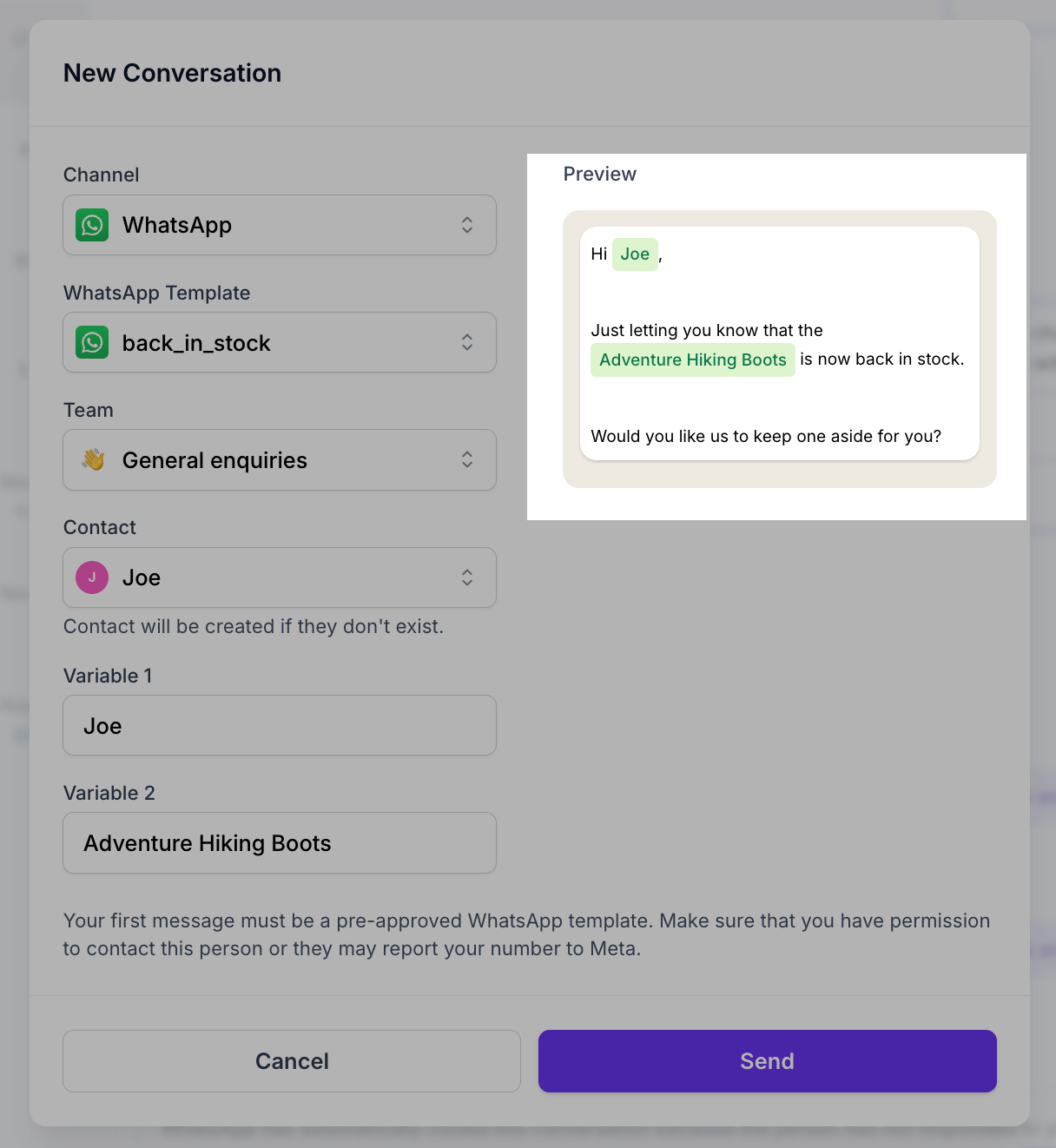
- The New Conversation modal will open
- Complete the form fields (detailed below)
- Review the message in the Preview panel on the right
- Click Send to send the message and create the conversation
New Conversation form fields
Channel
Select the WhatsApp channel you want to send from. If your workspace has multiple WhatsApp numbers connected, choose the appropriate one.
WhatsApp Template
Select a pre-approved template for the initial message. Only templates that are approved, marked as available in conversations, and in the Marketing or Utility category will appear in this list.
Team
Optionally assign the conversation to a team. This determines which team the resulting conversation will be routed to.
Contact
Select an existing contact or enter a new phone number. If the contact does not already exist in your workspace, they will be created automatically when you send the message.
Variable fields
If the selected template contains variables, input fields will appear for each one (e.g., Variable 1, Variable 2, Variable 3). Fill in the personalised values for each variable - these will be inserted into the template message.
Media
If the selected template has a header that requires media (image, video, or document), a media upload field will appear. Upload or select the appropriate file to attach to the message header.
Preview panel
The right-hand side of the modal shows a live preview of the message as it will appear to the recipient. Variables are highlighted within the message body, and any header media is displayed at the top.
After sending
- A new conversation is created in your inbox with the sent template message
- The conversation is assigned to you (and optionally to the team you selected)
- Once the recipient replies, free-form messaging is enabled and you can continue the conversation without needing a template
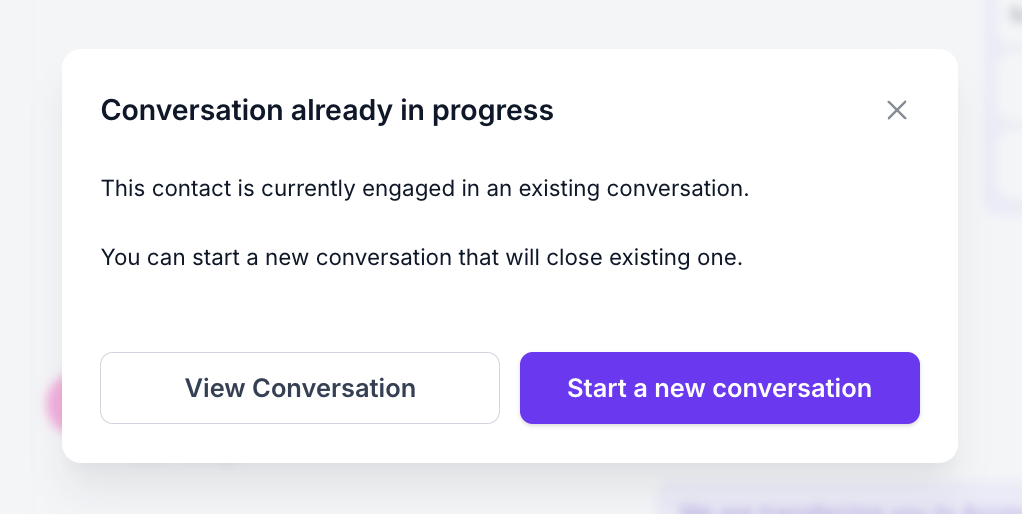
- If the contact already has an existing open conversation, and you have the Workspace Owner or Supervisor role, you will be given the option to review that conversation or create a new one (which will close the existing conversation). This option is not available to users with the Outbound agent role
Frequently asked questions
Why can't I see the Compose button?
The Compose button is only visible to users with the Workspace Owner, Supervisor or Outbound Agent role.
Why are no templates showing in the dropdown?
This can happen if no templates meet the single-send requirements. Check that your templates are approved by Meta, have the "Available in Inbox" option enabled, are in the Marketing or Utility category, and do not include buttons or footers.
Can I send to a contact who doesn't exist yet?
Yes. If you enter a phone number for a contact that doesn't exist in your workspace, the contact will be created automatically when you send the message.
What happens if the contact already has an open conversation?
If you have the Workspace Owner or Supervisor role, you will be prompted to either review the existing conversation or create a new one. Creating a new conversation will close the existing one.