
How to set up two-factor authentication (2FA) in Cue
Two-factor authentication (2FA) adds a second step when you sign in to Cue. After you enter your password, you also enter a code from an authenticator app on your phone. This guide covers how to set up 2FA, how to sign in with it, and how to replace or turn it off.
Setting up 2FA
You can set up 2FA from the prompt that appears after you sign in, or at any time from your Security settings. 2FA is set up per user, so each person in your workspace turns it on for their own account.
How to set up 2FA from the sign-in prompt
If you don't have 2FA turned on, Cue will ask you to set it up after you sign in.
- Sign in to app.cuedesk.com with your email address and password
- When the 2FA prompt appears, click Set up 2FA
- Open your authenticator app and scan the QR code shown on screen, then select Next
- Enter the 6-digit code from your authenticator app
- Click Verify
2FA is now on for your account and you will receive an confirmation email. The next time you sign in, Cue will ask for a code from your authenticator app.
How to set up 2FA from your settings
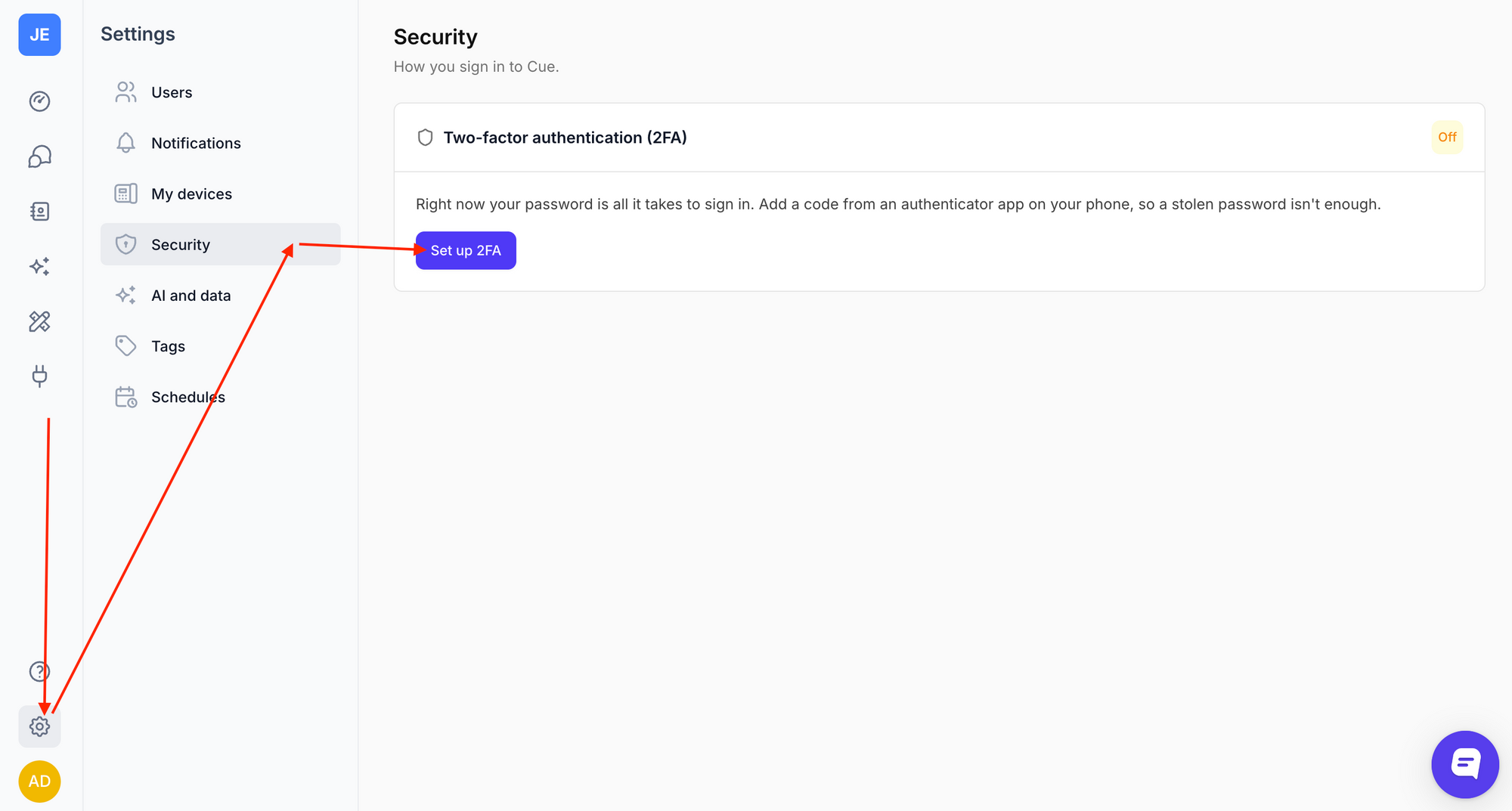
- Open app.cuedesk.com
- Navigate to Settings > Security
- Click Set up 2FA
- Enter your Cue password to confirm it's you
- Open your authenticator app and scan the QR code shown on screen, then select Next
- Enter the 6-digit code from your authenticator app
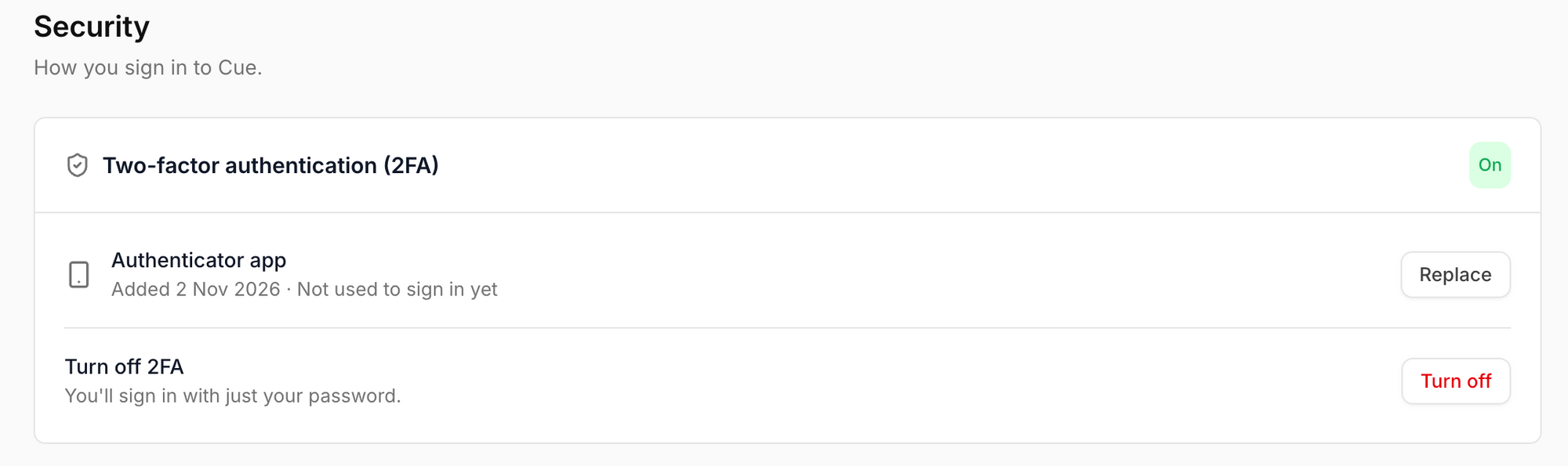
The Security page will now show that 2FA is on for your account, and you will receive an confirmation email.
Signing in with 2FA
Once 2FA is on, signing in has two steps: your password, then a code from your authenticator app.
How to sign in with 2FA
- Open app.cuedesk.com
- Enter your email address and password, then click Sign in
- Open your authenticator app and find the code for Cue
- Enter the 6-digit code and click Verify
You will be signed in to your workspace. Codes in your authenticator app change every few seconds, so enter the code that's currently showing.
Replacing or turning off 2FA
If you get a new phone or want to use a different authenticator app, you can replace your 2FA setup. You can also turn 2FA off for your account.
How to replace your authenticator app
- Open app.cuedesk.com
- Navigate to Settings > Security
- Click Replace
- Enter your Cue password to confirm it's you
- Scan the new QR code with your new authenticator app
- Enter the 6-digit code from the new app
Your old authenticator app will no longer work for Cue. Use the new one from your next sign-in.
How to turn off 2FA
- Navigate to Settings > Security
- Click Turn off
- Enter your Cue password to confirm
- Enter the 6-digit code from the authenticator app
You will only need your password to sign in from now on, and you will receive an confirmation email.
Frequently asked questions
Why don't I see the Security page or the 2FA prompt?
If your workspace uses Single Sign-On (SSO), 2FA is handled by your organisation's identity provider rather than Cue.
Does turning on 2FA affect other people in my workspace?
No. 2FA is set up per user and only applies to your own account.